
Everything Bytevane does
Every feature in Bytevane 2.0. Everything is free except the items marked Pro, which add control over what apps can do.
Speeds on the taskbar
Upload and download sit next to the clock and stay sharp at any display scale.
Live speeds next to the clock
Download and upload, refreshed every 0.5, 1, 2 or 5 seconds. The numbers keep a fixed width, so the taskbar never jitters.
A second column if you want it
Add today’s usage, the network adapter’s name, ping to 1.1.1.1, or link use as a share of the adapter’s speed.
Hover for a chart
Hover the speeds for a live chart with the peak, today’s total and the busiest app right now.
Your layout
Upload above download or side by side; arrows, words or no prefix; text from 7 to 24 pt, bold or regular. Colours follow your taskbar, light or dark.
Your spot
Next to the clock, at either end, in the middle, or wherever you drag it. Lock it in place and pick which monitor’s taskbar shows it.
Out of the way
Hides while a full-screen app is open, can let clicks pass through to the taskbar, and comes back by itself if Windows Explorer restarts.
One click from the details
Double-click the speeds to open the dashboard, or right-click for the menu. An amber dot appears when Data Guard has an alert you haven’t seen.
Tray icon
Prefer the notification area? The tray icon shows the same speeds.
Four icon styles
Arrows that light up when data moves, bars, a mini graph, or compact numbers. Colours adapt to a light or dark taskbar.
Tooltip
Current download and upload, the adapter in use, and today’s total.
Menu
Open the dashboard or Data Guard, show or hide the taskbar speeds, pause measuring, open Settings, or quit.
The dashboard
Opens when you want it and closes completely when you’re done, so it costs nothing in the background.
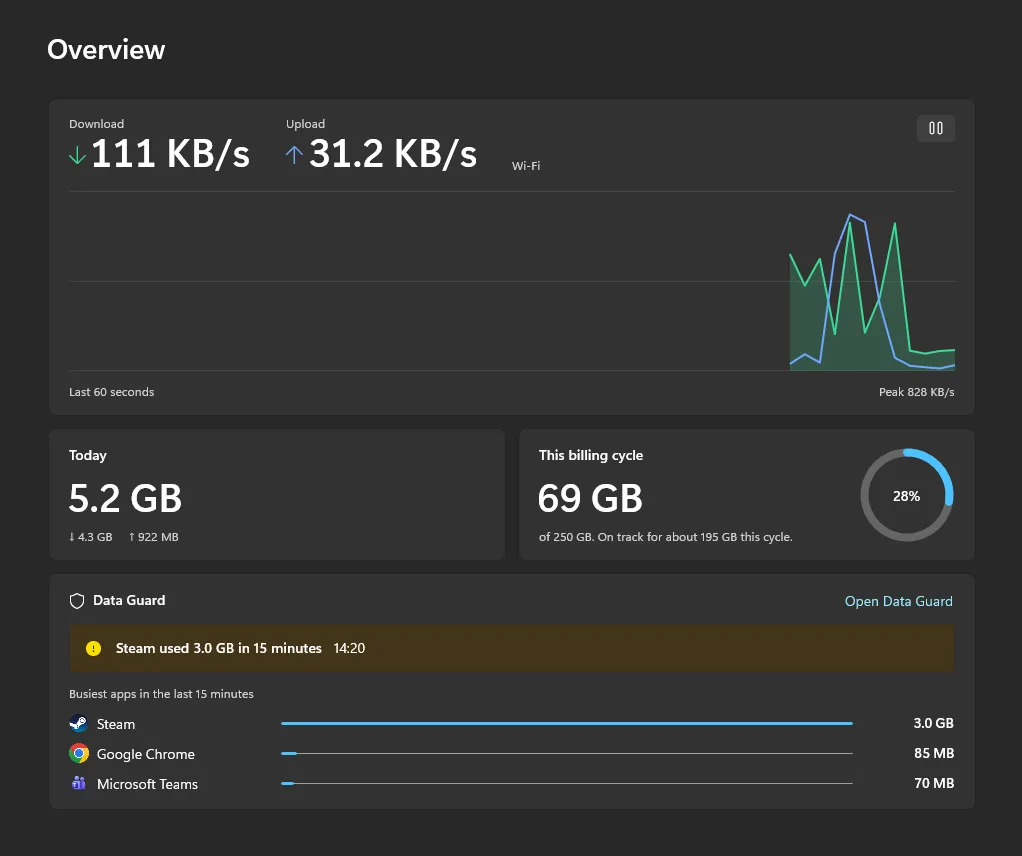
Overview
Live download and upload with a 60-second chart you can pause, today’s total split into download and upload, this month’s total, the latest Data Guard alert and the three busiest apps.
Apps
Every app that used your connection in the last 15 minutes, today, 7 or 30 days, with its icon and its download and upload. Traffic Windows can’t tie to an app shows as “System and unattributed”.
History from before you installed it
Per-app and per-network usage comes from records Windows already keeps, so the Apps and Networks pages aren’t empty on day one.
Networks
Usage for each Wi-Fi network, phone hotspot and Ethernet connection, for this month or your billing cycle.
History
One bar per day for any month, with the month’s total and daily average. Export every stored day as CSV. Kept for 365 days by default, or forever.
Billing-cycle forecast
ProWith a monthly cap set, the Overview shows how much of it you’ve used, a progress ring, and the date you’ll reach it at your current pace.
Light, dark or Windows
The dashboard follows your Windows theme, or pick light or dark. On Windows 11 it uses the Mica backdrop.
Data Guard
A notification that names the app the moment one starts eating your data.
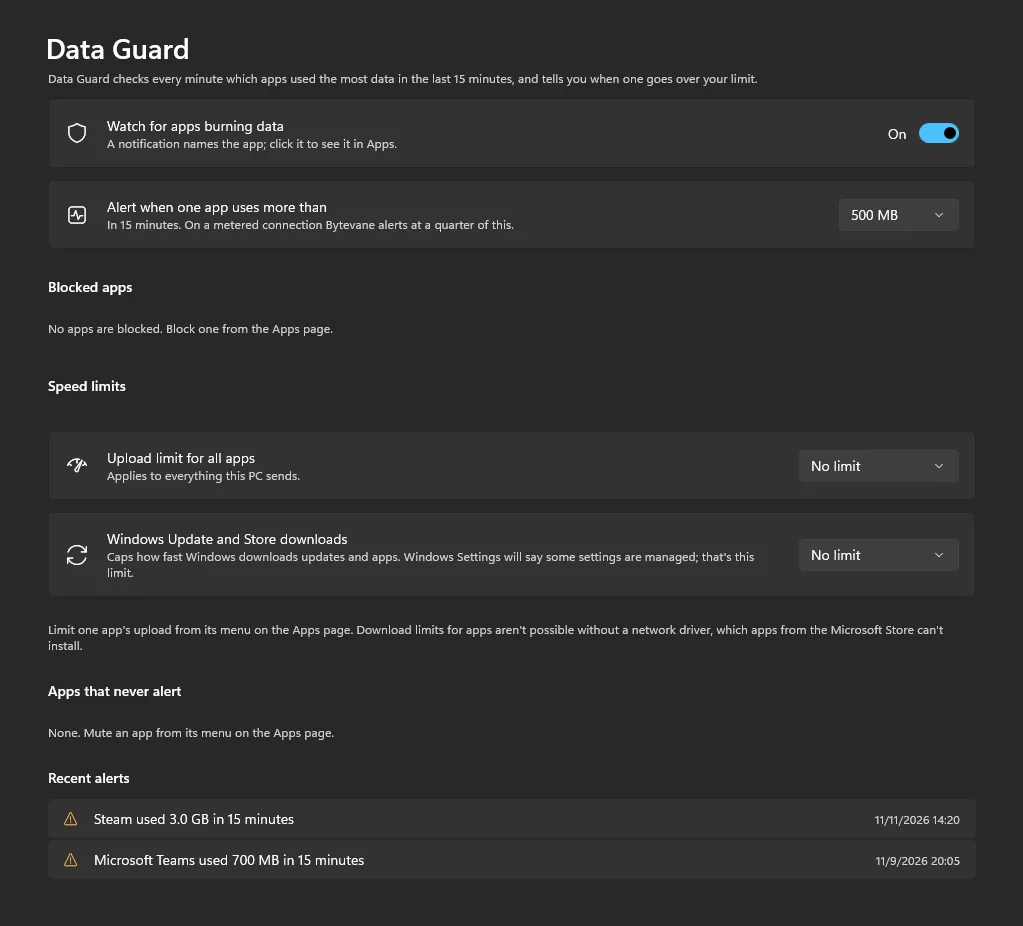
Checks every minute
Data Guard looks at how much each app used in the last 15 minutes and alerts when one reaches your limit: 100 MB, 250 MB, 500 MB (the default), 1 GB or 2 GB.
Stricter on metered connections
On a connection Windows treats as metered, such as a phone hotspot, the limit drops to a quarter, so 500 MB becomes 125 MB.
Windows Update too
When Windows itself uses a lot, the alert says so and offers a shortcut to set the network as metered so updates wait.
Calm by design
At most one alert per app per hour, Windows’ Do Not Disturb is respected, and any app can be muted.
Alert log
Recent alerts with their times. Click a notification to open that app on the Apps page.
Speed and daily alerts
Optional notifications when download or upload goes above a speed you set, when download stays below one for 15 seconds, or when today’s usage reaches an amount.
Share of what’s left
ProWith a monthly cap, an app that uses 5% of your remaining data in 15 minutes triggers an alert even below your limit.
Bytevane Pro
One payment of USD 24.99, no subscription. Each change asks for administrator approval through the standard Windows prompt.
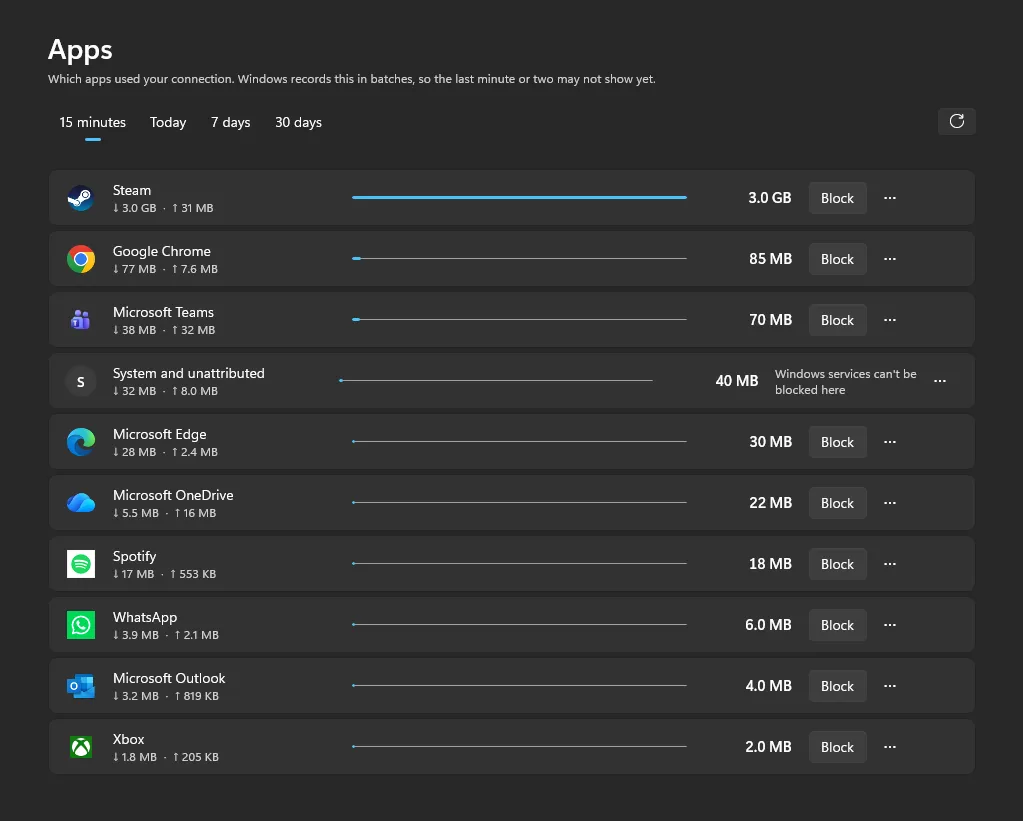
Block any app
ProAdds a Windows Firewall rule that stops the app reaching the internet, for desktop and Store apps. Unblock any time; the rule is visible in Windows Firewall as “Bytevane: app name”.
Upload limit for one app
ProCap a desktop app’s upload at 128 KB/s up to 50 MB/s, so a cloud backup can’t swamp a video call.
Upload limit for the whole PC
ProThe same presets, applied to everything at once.
Windows Update and Store cap
ProLimit how fast Windows Update and the Microsoft Store download, from 256 KB/s to 5 MB/s. Stays in place after a restart.
Limits that come back
ProWindows clears upload limits when the PC restarts. Bytevane notices and turns them back on with one approval.
Monthly cap and forecast
ProSet your allowance and billing day (1 to 28). Bytevane forecasts the date you’ll reach it from the last 7 days and alerts at 50%, 80% and 100%.
Caps for one network
ProCount only your phone hotspot or travel router toward the cap, and leave home Wi-Fi out.
Yours on every PC
ProPro belongs to your Microsoft account and unlocks wherever you sign in to the Microsoft Store.
Bytevane can’t limit how fast an app downloads: Windows only lets apps slow down what a PC sends, and download limits would need a network driver that Store apps can’t install. To stop an app downloading, block it.
Units, adapters and startup
Set it up the way you read speeds.
Bytes or bits
MB/s like download managers, or Mb/s like speed tests. 1 KB as 1,024 or 1,000 bytes, a fixed unit or automatic, 0 to 3 decimal places.
The right adapter
Follow the busiest adapter automatically, add them all together, or pick one. Virtual adapters such as Hyper-V, WSL and VMware are skipped, and VPNs still count.
Start with Windows
Off until you turn it on. Pause measuring from the tray whenever you like.
Welcome tour
Three short screens on first run show where the speeds live, the optional monthly cap and what Data Guard does.
Private and dependable
Built to run all day without you thinking about it.
No account, no telemetry
Nothing to sign up for, no analytics and no Bytevane server. The only connections are the optional ping and the Microsoft Store, for Pro.
Light
The always-on part uses about 16 MB of memory and 0.2% of one CPU core. Both programs are native code, with no .NET runtime to install.
Administrator only when it matters
Everyday use needs no administrator rights. Only blocking, unblocking and speed limits ask, every time.
Recovers from problems
A damaged settings or history file is set aside and replaced with defaults, with a notification. Waking from sleep never shows a fake spike.
Carries over from NetSpeed Tray
Bytevane 2.0 installs as an update to NetSpeed Tray 1.x, bringing your settings, history and Start with Windows choice, and leaving the old files untouched.
Requirements
Windows
Windows 10 version 1809 or later, or Windows 11.
PCs
x64 and ARM64, each with its own native build.
Languages
English, 日本語, 简体中文 and Deutsch.
Where to get it
Only from the Microsoft Store, which installs and updates it.
Start with the free version.
Everything except Pro is free, with no time limit.
Get it from the Microsoft Store